
OpenCast Video Embed Tool
Videos hosted in DCE OpenCast can be embedded directly in your DCE Canvas site pages for use in modules, assignments, and more.
A video tutorial of this topic, Using the OpenCast Embed Tool in Canvas, is also available.
How to embed the OpenCast video player in your Canvas page
To embed an OpenCast video in your Canvas page, go to the page where you will want the video, and click “Edit” to enter edit mode. Place your cursor where you would like to insert a video player.

Locating the Embed Tool App
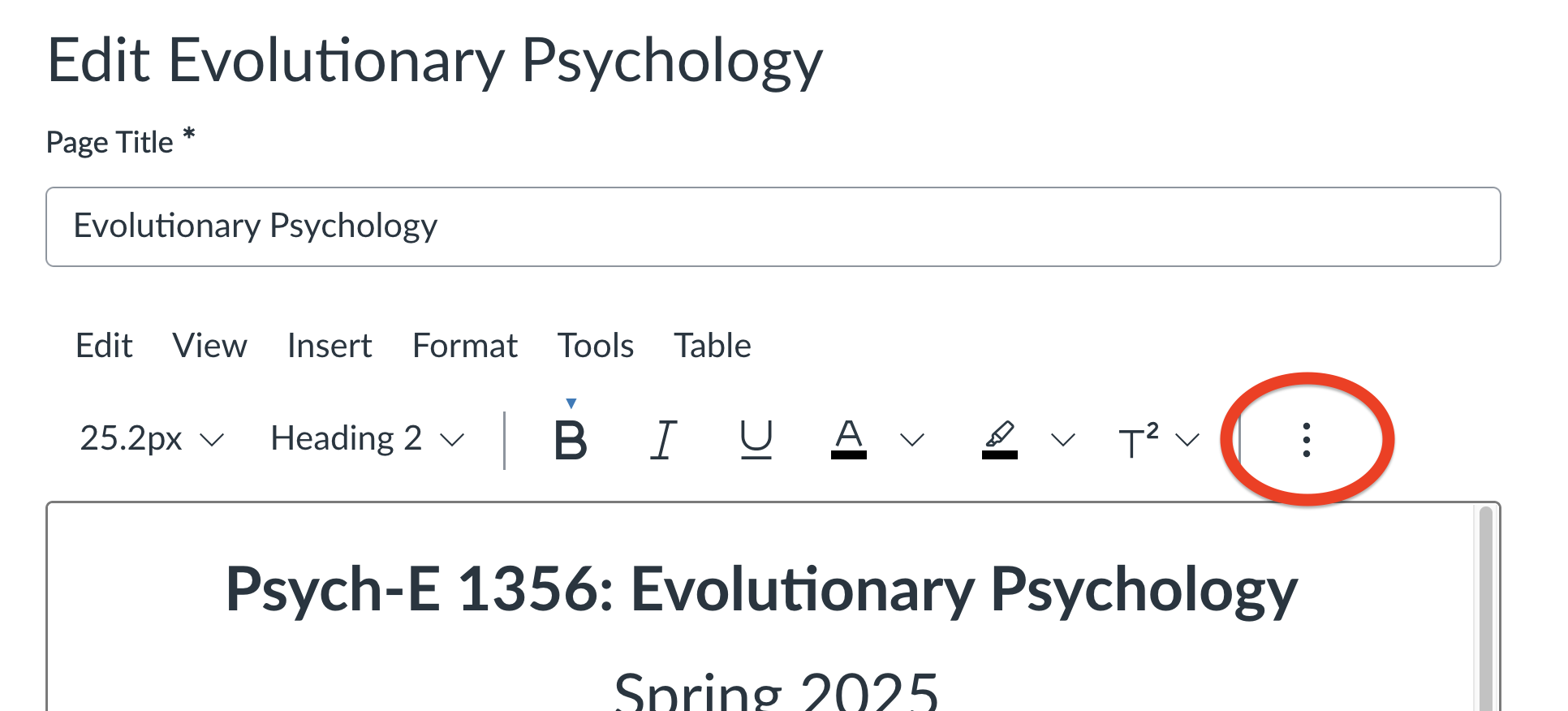
Look for the “Apps” button, which is an icon of an electrical plug. If you don’t see it, click the 3 dots icon for “More”.
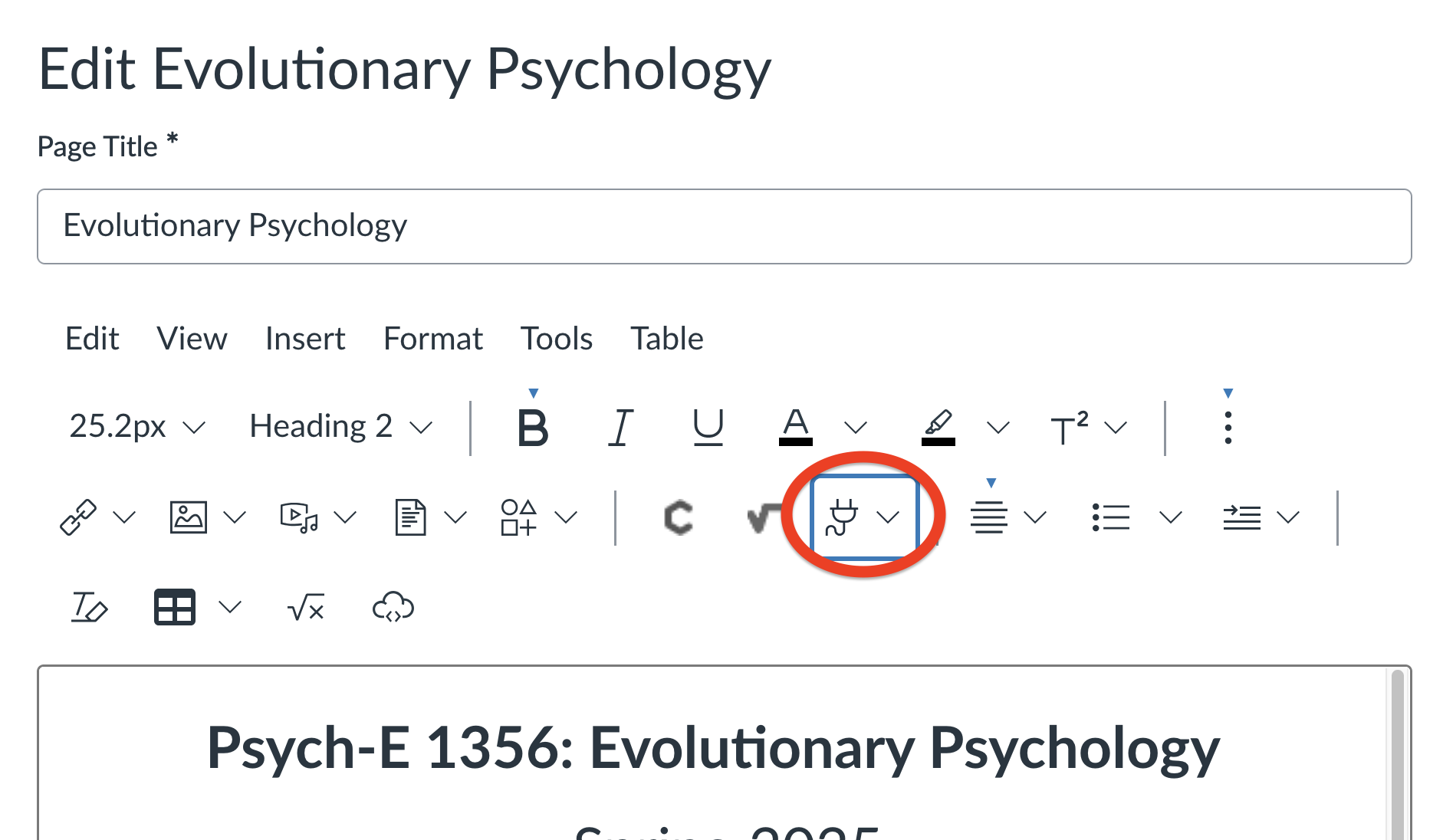
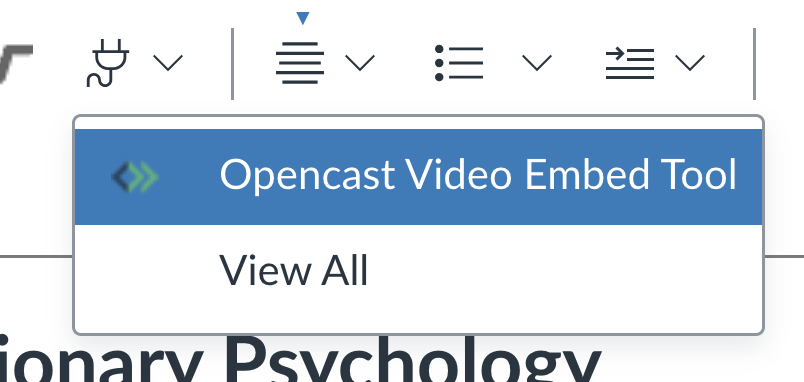
When you click on the plug, you should get a dropdown menu with the apps that are available. If you do not see “Opencast Video Embed Tool”, select “View All”, and choose it from the list of apps.
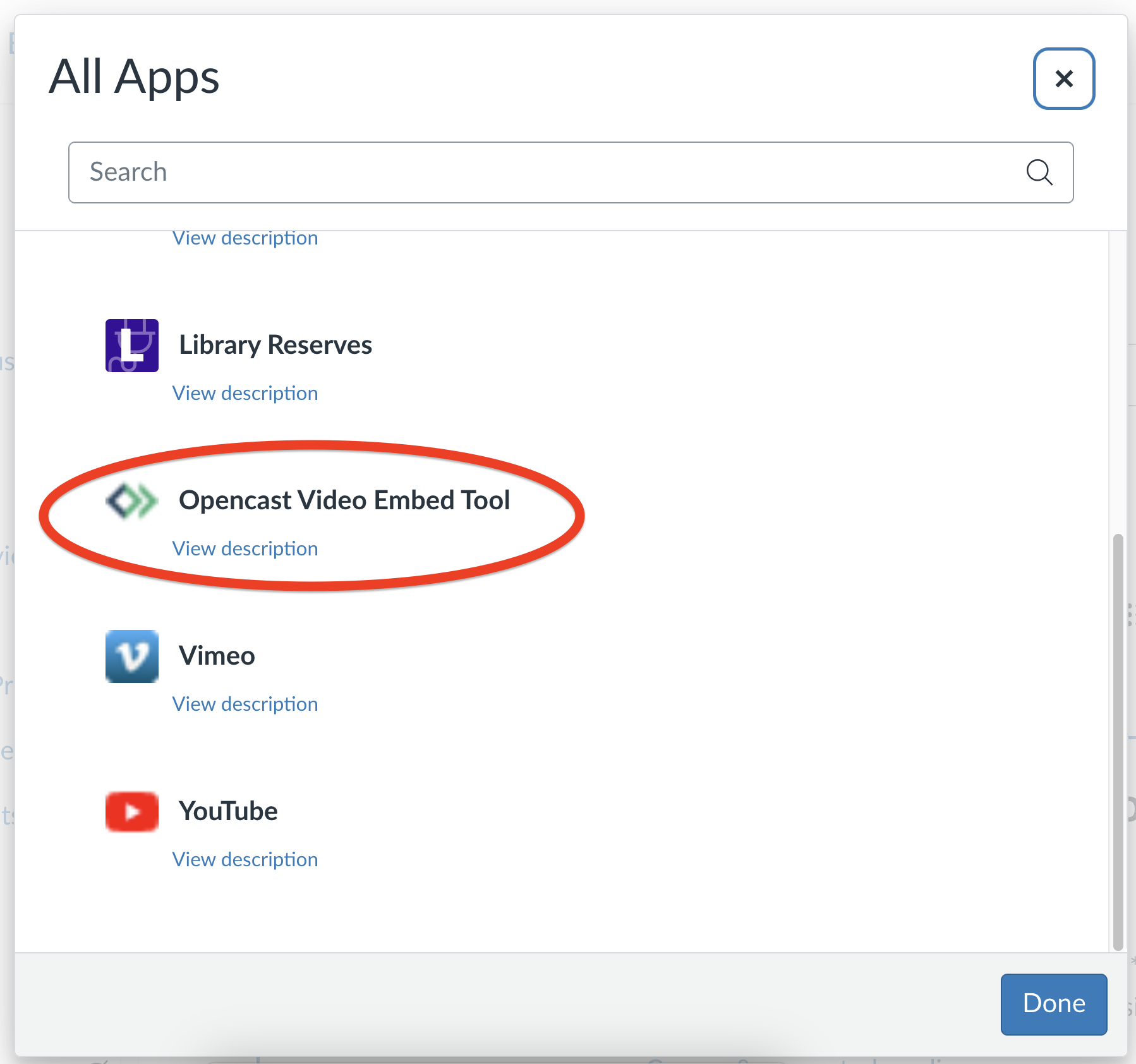
Select the tool, and a popup window will open.
Choosing the video
If there are already OpenCast videos associated with this particular semester’s offering of your course, you will see them listed. If no episodes are found, and you are not already working with the Classroom Video Production and OpenCast Services team for your video hosting, please reach out for assistance in uploading your material or retrieving it from archives.
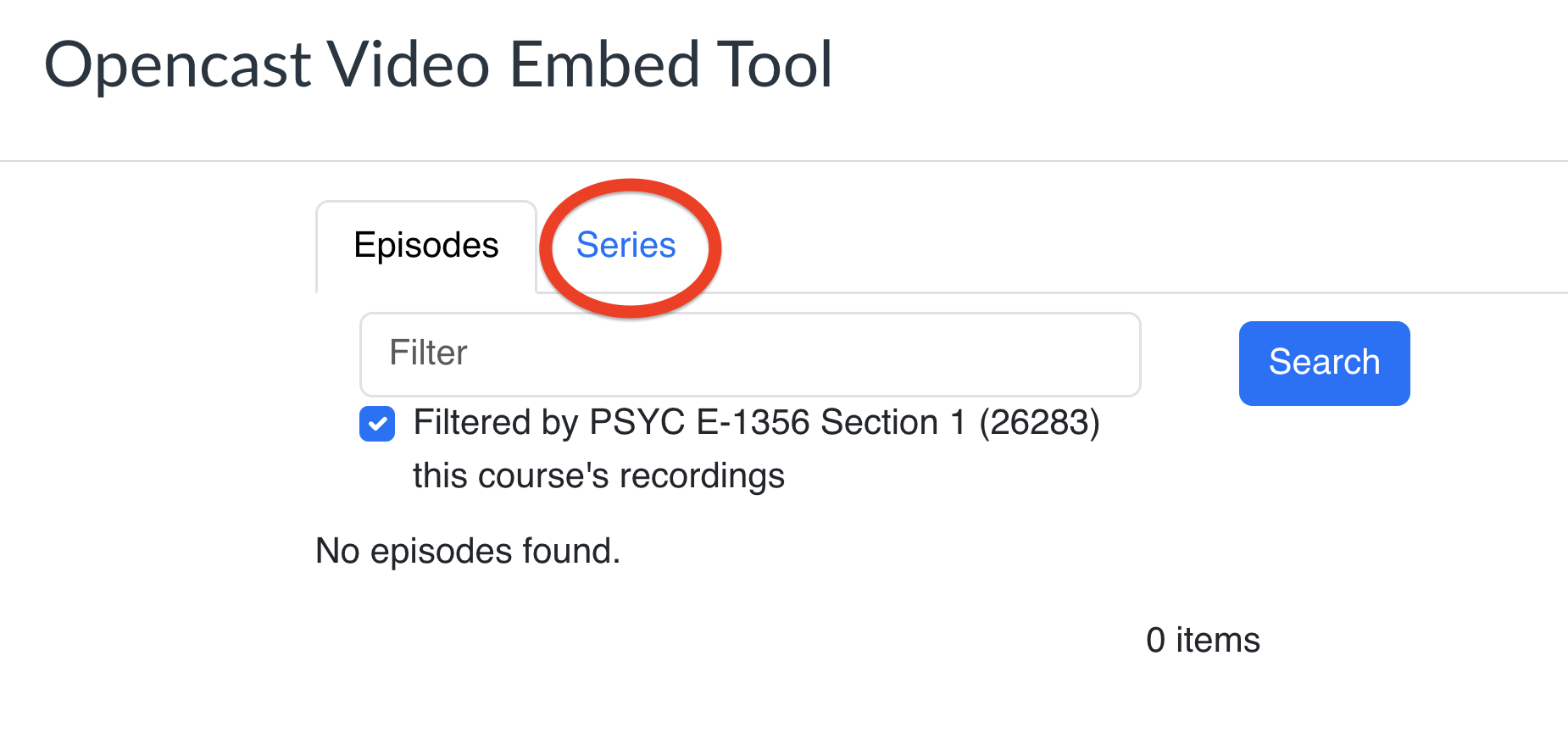
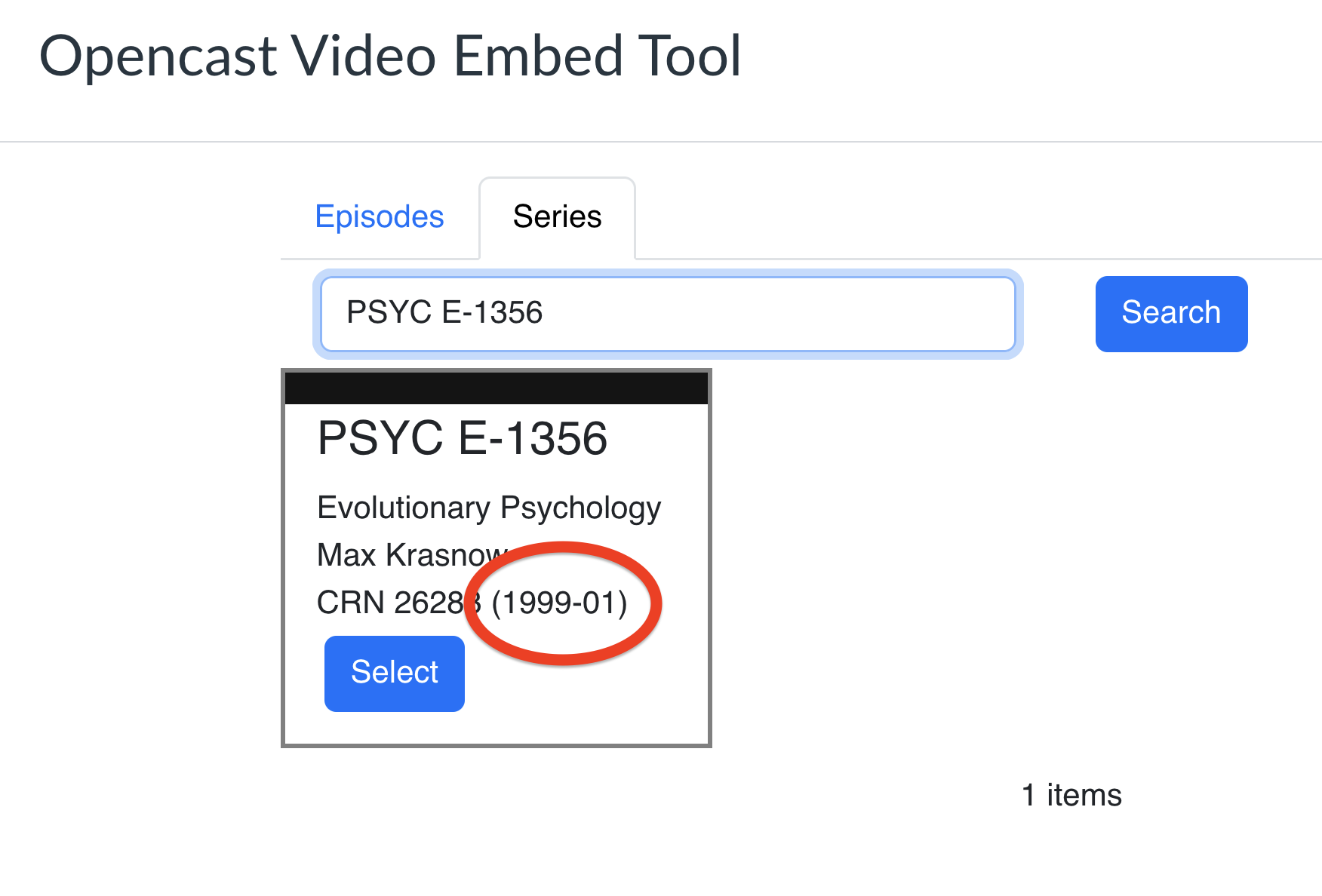
If you have been working with Classroom Video Production, your videos are probably located in a series which is not associated with any particular semester, so they will remain in our active catalog for re-use. Go to the “Series” tab, and if necessary, filter to your course number or the series number given to you by your video producer. You are looking for the instance that has 1999-01 listed as the semester. Click “Select.”
You should now see tiles for each video available in that series.

Once you find the video you want, click “Select” to embed the entire video.
If you instead click “Preview,” an editor window opens where you can play the video to confirm the content. If you want to embed only a portion of the video, such as a certain topic within a lecture, you can set the start and end points of your clip here.
Editing the embedded video

When the preview video appears, play the video and find the beginning and end of the section you want. Note the times shown in the player for these in and out points. Then drag the two sliders along the blue bar to those points according to “Range Shown.” You can check that your selection is correct by playing the video again, and you should now see only the portion you wanted.
When you are satisfied with your start and end points, click “Select,” and the edited video will appear in your page editor.
When finished, don’t forget to scroll down to the bottom of the editing page and save your work.

Playback restrictions
Why does it say on the video selection tile that students in your class may not be able to access these recordings, and to check with the Classroom Video Production and OpenCast Services team?

One of the advantages of the OpenCast system is the ability to limit playback access to only certain groups of users. By default, they will be locked down to just you and the staff associated with OpenCast Services. This prevents other instructors or Canvas administrators who may find your videos from using them on other sites without permission. However, if you do not update your access request to include your own current semester’s group of students, they will not be able to play the video either, even if you embed it.
The most secure way to set your video access for students is to request every time that the current or upcoming semester’s cohort be added to the access. For this setting, include the course number and semester of the course using it, or a link to your Canvas site.
Alternatively, you can request that all HarvardKey users be able to play your videos. In this case you will not need to contact us again to update the access groups every time you use the videos, but it is possible that they could be used by others at Harvard.
Contact
For questions or assistance with OpenCast Embed Tool for Canvas, or to update or check status of your video access parameters, contact Classroom Video Production and OpenCast Services at production @dce.harvard.edu
Article by Kriss Barnhart, Associate Director for Classroom Video Production and OpenCast Services, Harvard Division of Continuing Education, April 2026