
OpenCast Self Edit and Unpublish
How to use the Unpublish and Self Edit features in OpenCast to control the recorded video content that your students see.
Editing your flexible attendance class videos in OpenCast
A video tutorial of this OpenCast topic is also available
If you are teaching a course with a Flexible Attendance option, you should have a “Class Recordings” tab on your Canvas site which is maintained by the DCE Classroom Video Production and OpenCast Services department. When your class video recording posts to Canvas a few hours after your class ends, you may notice two buttons next to it, one for “Unpublish” and one for “Self Edit.”

These buttons are available for the first 24 hours after the timestamp on the video. After 24 hours have passed, if you need to make edits or delete a video, you will need to contact Classroom Video Production and OpenCast Services for assistance.
Unpublish
The “Unpublish” button removes the video from your site immediately and it becomes inaccessible to you and your students until it is restored by DCE technical staff.
We recommend this option for deleting videos which have no course content, such as an accidental recording on a day with no lecture, or for inappropriate content which must not be viewed by students. Inappropriate content might include revealing a password or other confidential material, a sensitive private conversation that should not have been captured, offensive or inappropriate behavior by a participant, or outsiders zoombombing a meeting.

When you Unpublish the video, a popup box will ask for the reason. Simply stating that the video should be deleted is fine. However, if you would like assistance removing inappropriate content before reposting the video, briefly describe what needs to be done and the Classroom Video Production team will reach out on the next business day to assist.
Self Edit
For video editing which is less urgent or is for aesthetic improvement, we recommend the Self Edit tool. When you click Self Edit, a user friendly editing interface will open in a new tab or window.

Video trims
To remove portions of the video, find the start and end of the clip you want to delete by playing the video, using the controls at the bottom of the player, and/or dragging the slider along the audio waveform timeline window. Click the “Cut” button to mark these in and out points on the waveform.

Then place the slider inside the clip you want to remove and click “Delete”. The portion to be removed will turn pink in the timeline, and the “Delete” button will change to a “Restore” button when your slider is over the clip.
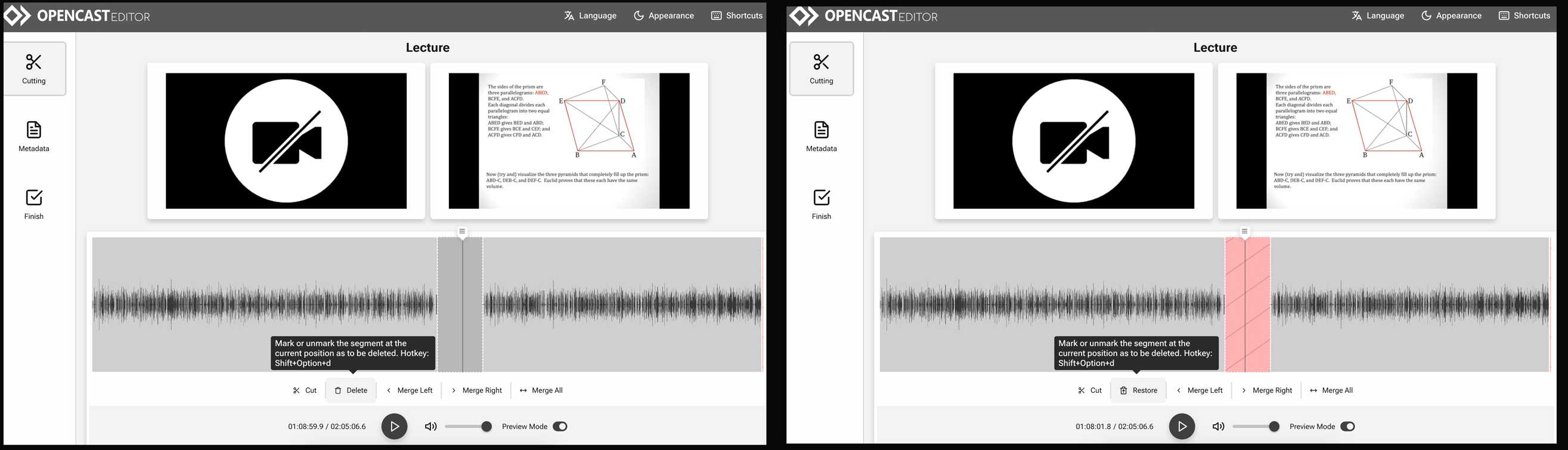
The “Merge All” button will remove all of the cut points you have placed if you would like to start over.
Metadata
To update the video title or description which appears on the listing in Canvas, click the “metadata” button on the left. In this form, you can change the title and description of the video that appear on the “Class Recordings” listing page in Canvas. For example, on a video titled as the default “Lecture” you might want to add the lecture number or topic.
You can update the metadata even if you do not edit the video itself.

Saving and Processing
When you have made your changes, click “Finish” on the left of the screen. You will have three options:
● Save changes: saves your work, but does NOT begin processing the edits. Students will still see the old version with no changes. Next time you click Self Edit on the video you will see your work so far and can continue where you left off.
● Start processing: updates the metadata if you changed it, and begins processing the video file to create your edited version.
● Discard changes: exits the video editor without saving or executing any edits

While your video file is processing the edits, students will still be able to watch the old, unedited version. When the new one is ready, it will automatically replace the unedited video in the listing.
Processing may take a few hours, which is why we recommend the Unpublish option for any sensitive content that must be removed immediately.
Contact
For questions or assistance with OpenCast video editing, contact Classroom Video Production and OpenCast Services at production @dce.harvard.edu
Article by Kriss Barnhart, Associate Director for Classroom Video Production and OpenCast Services, Harvard Division of Continuing Education, April 2026